

Create a transactionId for single stock or basket orders
Notes:
-
This request to generate transactionId through Gateway API must be done from the backend platform (not client interface). This is to ensure that the apiSecret & secret are not exposed
-
The orders are placed with NSE as the exchange. Hence the
SECURITIESarray in theorderConfigmust contain NSE tickers for each stock -
Transaction
type&quantityare optional fields at stock level. However, if specified, these must be specified for all stocks in the array
How to define SECURITIES array, examples below -
code snippets
{
    "intent": "TRANSACTION",
    "orderConfig": {
        "type": "SECURITIES",
        "securities": [
            {
                "ticker": "RELIANCE",
            },
            {
                "ticker": "TCS",
            }
        ]
    }
}
{
"intent": "TRANSACTION",
"orderConfig": {
"type": "SECURITIES",
"securities": [
{
"ticker": "RELIANCE",
"quantity": 10,
},
{
"ticker": "TCS",
"quantity": 10,
}
]
}
}{
"intent": "TRANSACTION",
"orderConfig": {
"type": "SECURITIES",
"securities": [
{
"ticker": "RELIANCE",
"type": "BUY"
},
{
"ticker": "TCS",
"type": "SELL"
}
]
}
}{
"intent": "TRANSACTION",
"orderConfig": {
"type": "SECURITIES",
"securities": [
{
"ticker": "RELIANCE",
"quantity": 10,
"type": "BUY"
},
{
"ticker": "TCS",
"quantity": 10,
"type": "BUY"
}
]
}
}How NOT to define SECURITIES array, examples below -
code snippets
{
    "intent": "TRANSACTION",
    "orderConfig": {
        "type": "SECURITIES",
        "securities": [
            {
                "ticker": "RELIANCE",
                "type": "BUY"
            },
            {
                "ticker": "TCS",
                "quantity": 10
            }
        ]
    }
}
{
"intent": "TRANSACTION",
"orderConfig": {
"type": "SECURITIES",
"securities": [
{
"ticker": "RELIANCE",
},
{
"ticker": "TCS",
"quantity": 10,
"type": "BUY"
}
]
}
}{
"intent": "TRANSACTION",
"orderConfig": {
"type": "SECURITIES",
"securities": [
{
"ticker": "RELIANCE",
"quantity": 10,
},
{
"ticker": "TCS",
}
]
}
}Limit Orders
Now users can place limit order for supported brokers (5Paisa & Zerodha).
learn more
Users can either directly enter relevant limit order details in smallcase Gateway's order modal, or you can ask user to enter those details in your interface and smallcase Gateway will pre-fill the same in order modal.
Request structure still remains the same. There are some additional keys that needs to be sent in orderConfig.securities[] -
orderType(string)
Possible values are -MARKET(default)LIMITSLSLM
price(number)triggerPrice(number)
User will have an option to place limit order based on broker support. If not supported, the order will be considered as a market order.
| orderType | price | triggerPrice |
|---|---|---|
| MARKET | - | - |
| LIMIT | required | - |
| SLM | - | required |
| SL | required | required |
Example -
{
    "intent": "TRANSACTION",
    "orderConfig": {
        "type": "SECURITIES",
        "securities": [
            {
                "ticker": "RELIANCE",
                "type", "SELL",
              	"orderType": "LIMIT",
                "price": 2500
            },
            {
                "ticker": "INFY",
                "type": "BUY",
                "orderType": "SL",
                "price": 1700,
                "triggerPrice": 1710
            },
            {
                "ticker": "LICI",
                "type": "BUY",
                "orderType": "SLM",
                "triggerPrice": 3000
            },
            {
                "ticker": "ITC",
                "type", "BUY",
              	"orderType": "MARKET"
            }
        ]
    }
}
Custom basket image & name
In the login popup & order modal, integration partner's name & logo is displayed by default.
In case if you want to brand stock basket which user is investing in, same can be powered. Your stock basket's name & image will be displayed in relevant gateway screens.
learn more
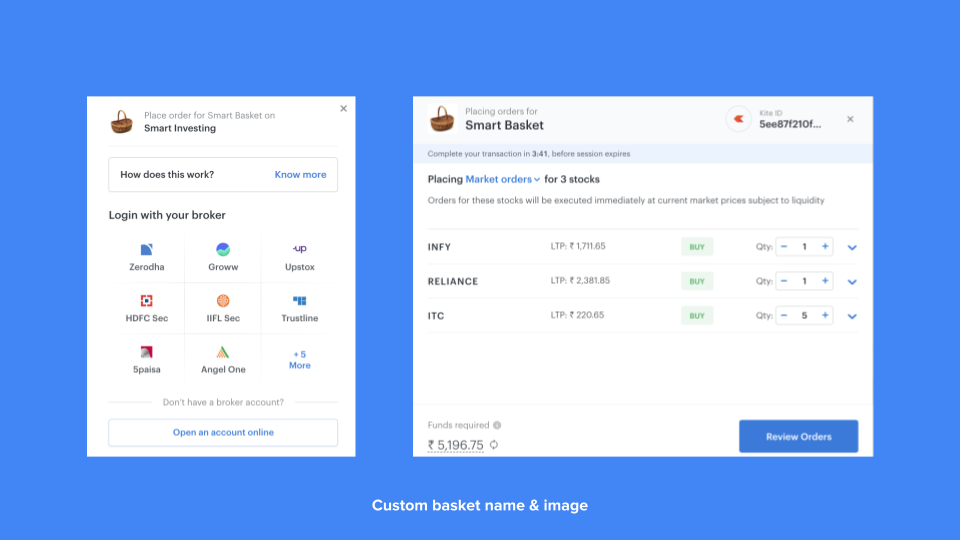
The headers will have custom basket name & image
How to add this customisation?
Passing the basket name & image URL in the create transaction API is all that needs to be done. On triggering the transaction with basket meta, the same will be displayed to the user.
Sample request -
{
     "intent": "TRANSACTION",
     "orderConfig": {
          "type": "SECURITIES",
          "securities": [
               {
                    "ticker": "TCS"
               },
               {
                    "ticker": "INFY"
               }
          ],
          "meta": {
               "orderName": "Smart Basket",
               "orderLogo": "https://avatars.dicebear.com/api/bottts/smart+basket.png"
          }
     }
}